The biggest problems with DOORS Classic is that, even with a rigorous template and careful administration, modules in large projects can end up with different attributes with similar functions and names and worst of all, the same name but different enumeration types for the same attribute. It is almost impossible to detect these anomalies using manual means. One example could be where an attribute in two modules has a slightly different spelling or has a space on the end of the name. Another real life example, which is in the IBM Rational DOORS Car Project, is that the module ‘Architectural Design’ contains an attribute named ‘Design risk’ which has a type of name ‘Design risk’ and enumerations [High | Low | Medium ], whereas in the module ‘Stakeholder Requirements’ the type is ‘Text’.
This is of particular importance if a project is migrating to DOORS Next, where these sorts of differences can lead to huge rectification efforts.
There is not a function within DOORS Classic to identify all attributes and types. And a script that identifies just attributes or just types is of limited value because of the effort needed to compare the results. What is needed is an alphabetic list of attributes for all modules within the project or database together with the associated type and the enumerations. Any slight differences can then be easily detected and rectified.
This utility is either run from the database DXL interaction window or from the main menu. The utility detects if it has been run with an open current project.
It begins by opening and displaying some information messages in the DXL interaction window and a popup to determine some options from the user. The export to Excel function is only active if a project has been selected, as a database is likely to contain more than 252 modules which is a limiting factor in the number of Excel columns.
Identify Attributes and Types – Option screen
Depending on the option selected, the DXL will run through each item in the database or a specific project building a skip list. Each module is opened in read only mode, background with standard view. It always ignores DXL attributes (this can be analysed using a different script). Depending on the options selected, certain other attributes are also ignored.
The output to the DXL interaction window consists of 2 items, the name of the attribute and its type combination and in which module(s) this can be found.
Identify Attributes and Types – DXL Interaction window outputTypical example of the output to the DXL Interaction Window
If the option to export to Excel is selected, then Excel is automatically opened and a table with the modules across the top as columns and the attributes and type combination in the rows. In order to make it easier to analyse, the modules are grouped by folder and the top bar is colour coded for each folder.
Identify Attributes and Types – Excel output
Because there can be thousands of modules and attributes in a database, then the script displays a progress bar based on the number of modules in the database/project to be analysed.
One of the problems with DOORS Classic. is that a user can create a private view and there is no way of knowing this. Even the users that normally run the administration of the database will be unable to see or manage these views. Only the database administrator user who set up the database has access to all views.
This utility is either run from the database DXL interaction window or from the main menu. It loops through all projects in the database and then all items within each project and builds a skip list of modules. It then loops through all items in the skip list – we are not using recursion to search through the database in this method. Because there can be thousands of modules in a database the script displays a progress bar based on the number of modules in the database.
Each module is opened in read only mode, background with standard view. The script runs through all the views in the module ignoring the standard view and any views with inherited access as these cannot be private or custom views. The script then sets view permissions to ‘RMCDA’ for the named group (usually the group responsible for the administration of the database) that is set as a constant in the DXL script.
Update all views in database – DXL Script checksUpdate all views in database DXL ScriptUpdate all views in database DXL Script – Output
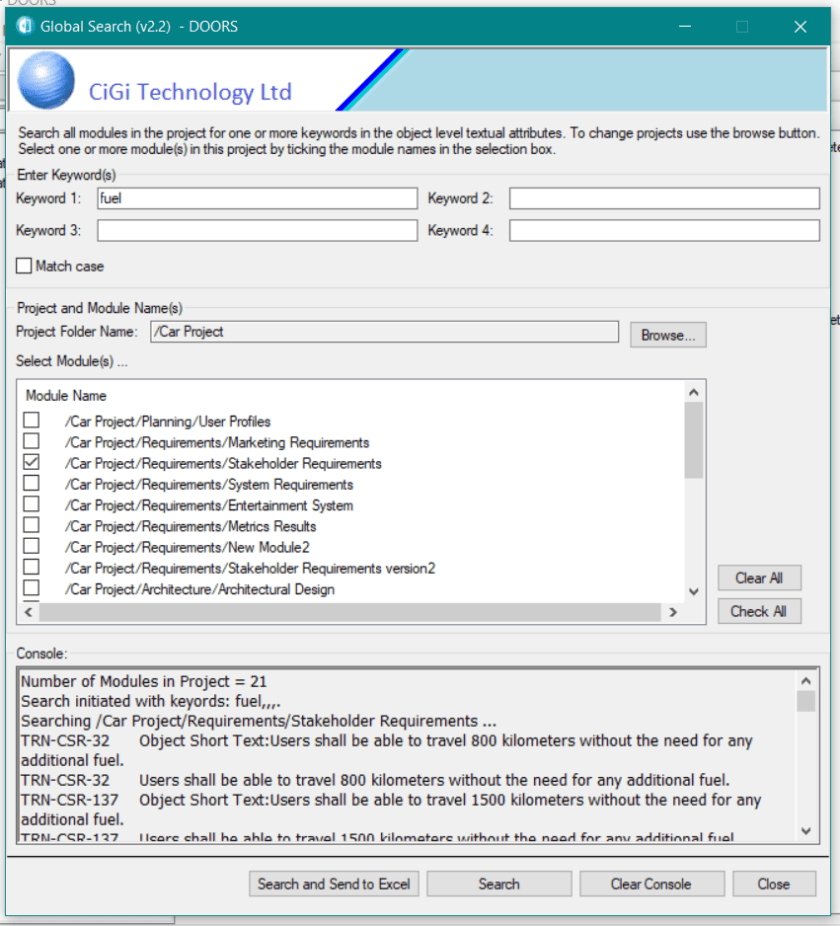
This utility searches through all the one or more modules for keywords which are specified by the user.
The user first selects the modules to be searched based on the current project. The current project can be changed by browsing, using a mini explorer, to a new project.
Global Search utility
Up to 4 keywords can be identified at any one time and the user can select if the case is to be matched in the keywords or not. All textual attributes are searched so that includes Object Heading and Object Text, the Object Short Text, Last Modified By and any other attributes. These are automatically detected by the utility.
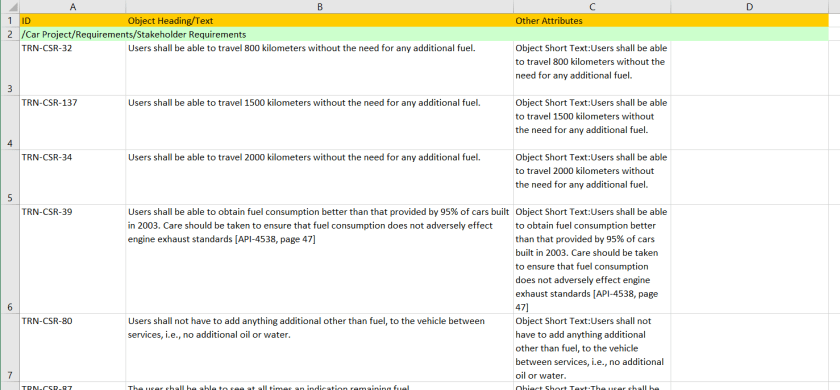
The user can decide if the results of the search are to be also sent to an Excel spreadsheet for later analysis. The Excel file is therefore not closed at the end of the search.
Global Search Tool-Excel output
Although DOORS Next already has a similar project search functionality, it is more akin to the typical search functionality and does not export to Excel.
Once again, we come up against a failing of DOORS Classic. How do you manage links?
As an example, the database administrator decides at the start of the project to have a single link set for all ‘satisfies’ links. Later the decision is made to have separate link modules for each sub project. The original ‘satisfies’ module has to be split into multiple link modules and the links from each requirement placed into one of the new link modules. To do this using classic DOORS is very labour intensive (and error prone).
This utility does this splitting for you. It is very simple.
It copies or moves the links from any module pair to another other set of
modules though any link module. In the above use case, the administrator will
need to open up each module in turn and move the links into the correct link
module.
Link Manager utility
It is run from within the source module and has 2 mutually
exclusive options:
Move
the links OR
Copy
the links
It also has 2 toggle modes:
The ‘Dry Run’ mode (default) where it analyses the links and displays a list of proposed changes. This enables a review to be made before the links are actually made. If this mode is switched off, then the links are created.
The log results mode that displays the results in the DOORS interaction window.
Rather than browsing
every time, each link, source or target module cut and paste directly
into the relevant box.
Note that it assumes that the link set pairings have already
been created for the new links although future enhancements of the tool could
build these automatically.
It could also be
adapted to be run from the main DOORS window and perhaps select groups of modules
for the same action.
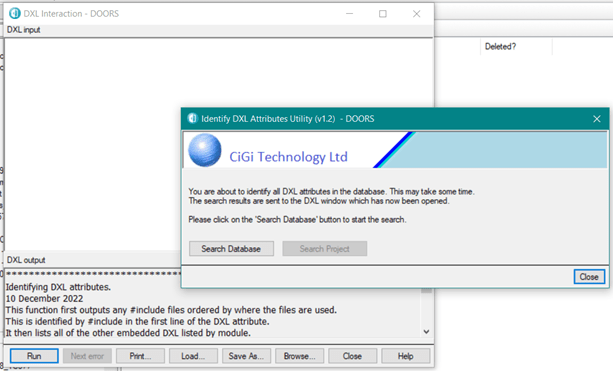
This simple script is used when you get a DXL attribute error but do not know which module is causing the error (which is very common) or when the DOORS administrator wants to identify the DXL attributes in all the modules. Perhaps prior to combining or modifying a specific function.
DXL script to find all DXL attributes in the database
IIf a project is selected before the utility is run, then both buttons are enabled. The user can choose to search the whole database, or limit the search to just the selected project.
DXL Script to find all DXL attributes in a specific project
Depending on the user choice the script then interrogates all modules in the database or the current project, and because this may take some time, then a progress bar is displayed:
Wait progress bar for the DXL Script
When the DXL script completes, it lists the names of the DXL attributes in the DOORS interaction window.
Results page to find all DXL attributes in the database
You can then use the Module Administration utility to confirm and manage the DXL attributes.
All entries are loaded from the modules when the tool starts and compared to the attributes for the current Object. Matched terms and their meanings are displayed. No links are involved.
Display Meaning Tool
The tool can also be used to add, delete or edit existing
entries in any of the common modules and there is also functionality to open
the original source document using its URL.
It is very common practice to introduce a hierarchical breakdown of a project according to the products or systems. This is known either as a Product Breakdown Structure (PBS) or System Breakdown Structure (SBS). There are a number of ways to introduce this into the DOORS database. You could use an attribute in every module with an enumerated list containing all the PBS values. The disadvantage of this approach is that when you have to make a change to the list (and this is more common than people think) then the type has to be changed in every module. Whilst this is easy to achieve using the Module Administration tool (see Module Administration utility), the second disadvantage is that you cannot actually see a hierarchy in a flat list of elements. You also cannot see a combined list for all modules. So, if you wanted to see requirements allocated to System X then you would have to search all modules and somehow collate the results together.
A more effective approach is to build a PBS into a standalone module. This has a number of advantages:
The
hierarchy is immediately obvious;
The
list can be easily changed;
The
item can have additional attributes such as a description;
By
linking requirements to items in the PBS it is possible to display the values
as a DXL attribute; and
Most
importantly, by viewing the requirements from the perspective of the PBS you
can see the impact of making a change to the PBS– before making the change. Impact
analysis is greatly enhanced.
The principle can
be adopted for any hierarchical list. For example, hazards can be broken down
into causes.
The same principle for a PBS can be applied to a
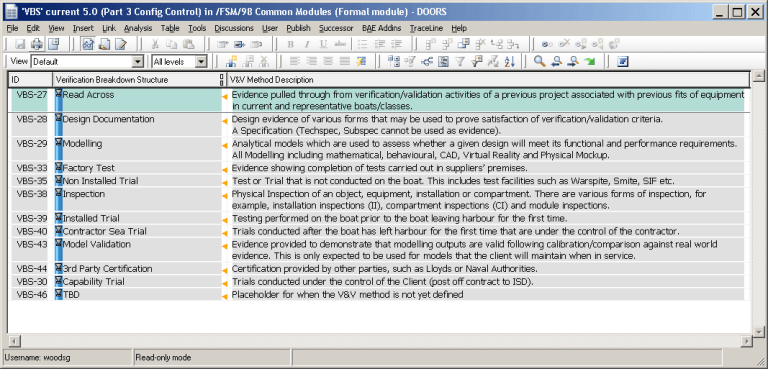
Verification Breakdown Structure (VBS). In fact, using DOORS as a relational
database, it can be applied to any form of enumeration (Organisation Breakdown
Structure (OBS) or Work Breakdown Structure (WBS) although over-use can result
in spaghetti-like links.
The Verification Methods would be defined in the Verification Breakdown
Structure, or its equivalent, and therefore it is very easy to identify all
requirements that will be affected by a single Verification Method by looking
at all the links from the VBS module. This permits the use of multiple
Verification Goal modules structuring and ordering the Verification activities
according to operational rather than functional needs. This approach makes the
generation of the Test Procedures/Test Schedules very controlled as the modules
provide the framework.
Another point to note is that there should always be a
strict data model enforced within the database with reserved words for the link
relationships. More details on how CiGi Technology can help you produce a data
model can be found in Consultancy
Services.
Example VBS
DXL
Attributes can be used to show the results of the link.
It is commonplace to see in a requirement statement the
phrase “in accordance with xxx” where
xxx is the title of a reference or “ … in accordance with Reference nnn” where
nnn is a unique number assigned to a reference. How is this managed in DOORS so
that the references are controlled and that any change is propagated through
the whole of the project?
In particular, it is very important to know the issue or version referenced from a requirement as any change in content may significantly affect a requirement and initiate an impact analysis (that determines what would be the impact of changing a reference). Unfortunately, there is nothing readily available in DOORS Classic that can help.
However, what we can do is to build a reference or evidence
list.
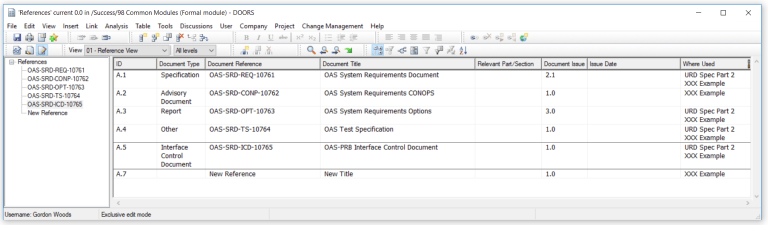
A reference list
would contain all the documents that are referenced by the requirements. As
well as the mandatory attributes such as the document reference number, title
and version/issue we could add additional information such as the document
type, who authored the document and when it was issued.
Example References
The question of what requirements would be affected can be
automated using DXL to provide the identification of where it is used. Thereby
considerably reducing the amount of time that the management of external and internal
referenced documents would take for an organisation.
An evidence list has similar properties but it is used to
identify documents external to DOORS that are used in the evidence trail. For
example, Standard Operating Procedures, Test Cases, Test Reports etc.
Example Evidence List
Additional attributes may include Verification or Validation identification and external hyperlinks to a document repository. The important thing to note is that the traceability from evidence to the requirements is continuous.
In these examples we are using an internal repository module/table. We could have alternatively used direct traceability links such as provided by Open Services for Lifecycle Collaboration (OSLC). Support on OSLC synchronisation to external document repositories such as Aconex, Documentum or TeamBinder is also available.
It is extremely useful if Abbreviations are defined either
at the Company or at the project level. This will prevent misunderstanding if
the same abbreviation has different meanings on different projects.
An example of this
could be ‘PBIT’ which could mean either “Power up BIT” or “Periodic BIT”. A
misunderstanding in the use of this term between teams could lead to totally
different functionality resulting in significant interface issues and rework.
Example Abbreviations
In this type of
implementation then a sophisticated DXL Attribute is used to display the ‘Where
Used’ values – there are no links involved.
It is interesting to note that this functionality is already
available in DOORS Next.
A data repository is always needed because words can have
different meanings in different contexts. They also can be highly specific:
Identification – A user (person or
system) must supply an identifier and/or the system must in turn supply an
identifier to the user so that the user knows that he is accessing the right
system.
Authentication – The identity of the user must be authenticated (i.e.,
verified so that we know that the user is who/what the identifier is associated
with). That is, authentication is the verification of the identity assigned
during Identification.
Authorization – Once a user has been identified and
the user’s identity has been authenticated, the user can use the services and
access the data that the user is authorized to use and
access. This can be done by membership in a group or done on an individual
identifier basis.
Use of italics and/or Capitalisation of a word is
often used as a means of indicating a glossary item, so that it is clear to the
reader that it is not just a word in a sentence, but it has a defined meaning.
A parser can now check the specification for undefined terms.
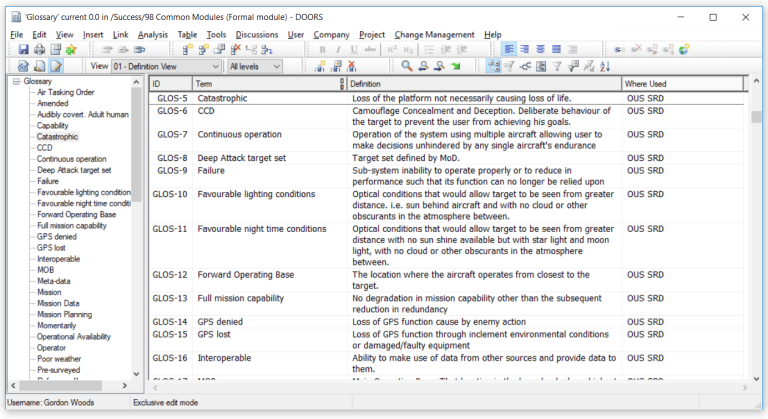
A glossary in a requirements specification, and which is
project wide, is absolutely essential as it provides the precise definition of all
terms.
Example Glossary
In this type of implementation then DXL Attributes are used to display the ‘Where Used’ values – there are no links involved. As with the Abbreviation terms, then this functionality is already available in DOORS Next.
For information on a DXL Script that pulls all these features together then click here.
The uses for DXL attributes are enormous. They range from
showing the specific content from links, or multiple links, or multiple hops
through links, calculated values, filtered values etc.
Layout DXL can be easily generated by a user with the
inbuilt traceability wizards. Primarily
for performance reasons, Layout DXL should always be converted to a DXL
attribute (again using the DOORS inbuilt functionality). But there are other
advantages:
Although the code of a DXL attribute can exist within a
module it is more commonly referenced to an external include file. This has the
significant advantage of reuse. If a script is located in the addins folder
then once that file is modified the changes are instantly propagated to all
modules that use this attribute ensuring consistent use across the project. Of
course, you only have to make a single modification.
You can even have a single include file with all the required
functions embedded within it.
For example:
Example of a DXL script containing multiple DXL functions
This has the advantage that common functions for displaying
text from buffers are all in one place.
The DXL attribute then consists of an include to this file
and then a call to the appropriate function.
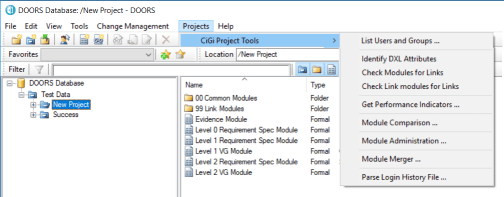
It is very simple to add custom menus for both the top level database menu (for project wide utilities) or for the module level. However, it is very important to ensure that the utility is added to the correct menu so that the two types of functionality are not mixed.
This is an example of a global type menu:
Example of a Project menu dropdown
This menu can be added in two ways. The first is by the use
of .idx files which are simple textual lists of the menu which are interpreted
by DOORS or secondly by DXL scripts which use the DXL functions createMenu (), createItem
() and separator().
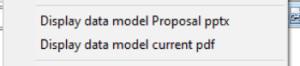
The menus can also be used to directly launch help documents
so that they are readily available to the users. No more searching through the
team SharePoint site hunting for the training manual… It is available at the
click of a menu.
Example Help menu
This is particularly useful for user guides, data models and
training material. Word, PowerPoint and pdf document styles are already
embedded within our generic DXL script – and the list can be readily tailored
for your project. For example, you could add work-flows displayed in Visio.
All of CiGi Technology utilities have additional protection
so that project wide utilities can only be run from the main menu and that only
module level utilities can only be run from within a module. There can also be
protection added so that only authorised groups can use either the complete
utility or specific functions within the utility.
The management of modules, copying of views and attributes are all essential tasks for a database administrator and yet there is no in built functionality in DOORS Classic that lets you do these simple tasks.
This
utility brings together all administration type functions. It works both at the
project level – allowing you to manipulate modules – and at the module level
which provides access to attributes and views.
Project Level:
The utility is opened via the DOORS main menu. It automatically
determines the current project folder based on what is open and/or selected but
the user can navigate to any other folder.
It then lists the module names within the project. Selecting a row will display the description and the prefix. The attributes or views in the selected module are also automatically listed. There is a further filter for attributes into normal, DXL or Module attributes.
Double click on the row and the module is opened but you don’t
have to open the module in order to work on it. All operations take place in
Read only mode unless a save is required in which case the utility takes care
of this, checking for locks etc.
The box at the top displays a running display of the success
or failure of any operation.
There are a number of operations that the user can perform
such as loading up a standard set of attributes from an XML file which is great
for pre-populating a module.
The user can also delete attributes or views for a selection of one or more modules at the same time which is extremely useful for making changes to all modules across a project.
The Project Report button produces an Excel report of the
views and attributes for all modules in the project.
Module Administration – Project Level
Module Level:
The same utility also works at the module level where the
user has access to shareable edit, and can manipulate attributes and views. For
example, delete one or more attributes, convert all ticked DXL attributes for
the current module into text or delete one or more views.
Attributes can be copied to other modules (with the relevant checks that they do not already exist in the target module) but perhaps the most useful is the copy view function where a selected view can be copied to one or more modules. This functionality is not easily performed in DOORS Classic.
There is also a button to reset all private views in a selected
module into global access views.