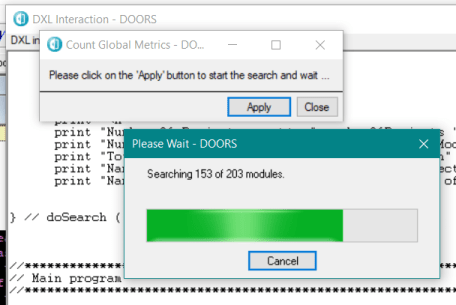
This utility counts the number of projects, modules and objects in the entire database. It is a simple script that is either run from a menu or loaded into the database DXL interaction window
There is a Boolean constant in the code that, if set, will print out the names of the folders and modules being searched. This is useful for debugging and for looking to see where any DXL attribute errors are located (if present, then these will be made visible when the module is opened by the script).
It doesn’t use recursion to delve down through the database structure but uses the itemRef in a ‘for’ loop through each project. This means that the order will be different to the hierarchy but since we are only interested in counts then that’s not a problem.
It will exclude deleted objects, deleted modules and deleted projects. The results are displayed in the DXL interaction window.
Global Metric Count Tool – DXL Interaction window output
The script opens up every module in the database so it can take a long time. A progress bar is therefore used to display the current position in searching through the database.
Gblobal Metric Count tool – Progress Bar
But perhaps the most significant aspect of this tool is that it can be easily adapted to collect other information as it parses its way through the projects and modules.
It is common to use colours to highlight specific values. This can be undertaken using the inbuilt features of DOORS to colour the text or the background based on the colour of an attribute enumeration. However, this has limitation in that it is sometimes difficult to read the text when in read only, and that only one colour can be used at a time.
The RAG metrics technique (and it is not limited to just Red, Amber and Green) can be used to set the colour of a layout DXL column based on keywords that are contained within the target text attribute. Any number of columns can be set up that will reflect any combination. It is a simple matter of editing the script.
This is a more sophisticated display of a percentage bar for multiple metrics for multiple modules. It uses a specific module that can be located anywhere in a project and that has just two views. There are two DXL scripts associated with this module. One is an attribute DXL script which contains functions to locate the target modules of interest, calculate the metrics and write the values back to the module; the second script contains layout DXL functions to read and parse the value entries and display the results as a list column and as a percentage bar.
Metric View: This view consists of four columns. The first column is a free format description of the metric. It takes no part in the metric determination. The second column displays a box, the percentage value, the actual count and the name for each enumeration to be counted. Note that the percentage total value may not be 100% as the individual values are rounded to the nearest integer and then totalled. The third column displays the same information but as a percentage bar. If the width of this column is changed then the percentage bar is automatically resized. The name of the attribute enumeration is only displayed within the bar if there is sufficient room to show the whole name. The final column displays the date and time when the DXL used to calculate the metrics was last run.
Metrics View
Metric Values: The entries within the columns within this view determine the metric itself. The first column is simply the Object Identifier. The second column, as in the Metric View, is the free format metric description from the Metric View. The next column determines whether the metric should be based on enumeration values in the target module or as a filtered count. The next column contains the full path of the module to be searched. If a project name (rather than a module name) is used, then the script will search all the modules in the project. If this option is selected, then the modules will need to have the same attribute enumerations. If a view name is added into the next column (it is optional and can be left blank), then this view is loaded and if the view has a filter then this constrains the values of the enumerations.
The attribute name column contains the name of the attribute that the enumeration values will be derived from. This is automatically extracted from the target module. The next column identifies the colours to be used for each enumeration. These can be set to any colour from the standard list of real colours. If there are insufficient colours defined, then the enumeration will be displayed as pale blue (which has an integer value of 0).
The next column displays the values from the DXL script that performs the search and calculations. The format is described below. The final column, as the metric view has the date and time of when the script is run.
Metric Values
These are the metrics as run on the Stakeholder Requirements module in the Car Project, with a filtered view “Requirements” applied and the System Requirements module with no view applied.
Note that the values in the Value column have a specific format and should not be changed as the entries are all calculated by the DXL script:
value,colour,B|W:count
value : name of the enumeration colour : the integer value of the colour in the colour map B|W : text colour (Black or White) count : the actual number of counts of the enumeration in the target module(s)
Sometimes requirement authors can get carried away and write
long verbose requirements or even longer descriptive text. These can cause
quality issues and more often than not can be easily split into smaller chunks.
This aids readability.
Over long requirements can imply that the V&V would be similarly
overly complicated.
Layout DXL script to identify oversized objects
This DXL script will identify over long objects (the size is
defined in the layout script) in a layout DXL column. All objects are
considered whatever the type, but tables are only displayed as a single row in
order to reduce the clutter.
If the size is below the required number of characters, then
it is excluded from the display by a filter. If not, then the number of
characters is displayed.
The reviewer/author can then split the object at a convenient location and the filters
can be reapplied.
As the project progresses then the requirement scope and
therefore the requirement text may change.
Occasionally, a requirement can become a description, or a
description can become a requirement. Worst case scenario is that the author
can forget to set the Object Type (it happens !).
We need to flag these mismatches so that only the true
requirements can then move forward for the completion of the verification and
validation attributes.
DXL script to apply a filter for Object Text and Object Type mismatch
This DXL script simply applies a filter for :
all requirements (as defined by the Object Type)
that do not have a “shall”
Often at the start of a project some of the design criteria, limits or ranges are not known and “To Be Defined” (TBD) or “To Be Checked”/”To Be Completed” (TBC) are used in place of, or together with, the proposed values. For example, the value maybe defined but followed by (TBC).
As the project progresses, then more detail will be
designed, and the requirements can be completed without these limitations.
What would be very useful is a DXL script to identify these
requirements which have been annotated in this way.
DXL script to apply a filter for TBD/TBC
This DXL script simply applies a filter for TBD or TBC for
all requirements (as defined by the Object Type).
Spell checking is always an issue in requirements. It is
important that all spelling mistakes are removed before a requirement is sent for
review so that the reviewers do not spend time correcting typos and forget the
technical stuff.
Layout DXL script to identify spelling mistakes
This script uses the spelling functions of DXL and will identify any misspelt words in a layout DXL column.
It does not prevent mistakes as you type like Word but if
combined with a view to filter on ‘not equal to “OK”’ then it is a simple task
to quickly spell check and correct. The current implementation is for English (UK)
as this is the most common language for requirements but the DXL script could
be adapted for other languages.
Perhaps one of the most important quality attributes necessary for a requirement is to be able to verify the requirement. Some of the phrases and words that we use in every-day language, because they are ambiguous or cannot be verified, should never be used in requirements; some should only be used in exceptional and justified cases. There are also non-specific phrases, pronouns, indefinite pronouns, unmeasured quantifications, indefinite temporal keywords and other grammatical constructs that also should never be used in a requirement.
Layout DXL script to identify banned words
This DXL script will identify any banned words (or rather terms that should be avoided) in a layout DXL column.
It does not prevent mistakes as you type but if combined with a view to filter on requirements and ‘not equal to “OK”’ (which is the default) then it is a simple task to quickly identify areas of concern and correct. The banned word list is currently hardcoded into the DXL script but it could be enhanced to read the list from a specialist module to provide more visibility and ease the maintenance task. The list could be tailored for individual companies.
It is interesting to note that IBM have recently launched
their own Requirements Quality Assistant for DOORS Next.
“Using Watson Natural Language Service and pre-trained AI, the Requirements Quality Assistant has 10 built in quality indicators designed to be consistent with guidelines from the International Council on Systems Engineering (INCOSE) and NASA for writing complete, clear and testable requirements to accelerate your review process, increase requirement quality and reduce training for junior requirements engineers.”
Although this DXL script is not as sophisticated as IBM’s, it nevertheless will highlight words that should be avoided – and at over 150 terms, our list is longer than in the INCOSE guide!
All entries are loaded from the modules when the tool starts and compared to the attributes for the current Object. Matched terms and their meanings are displayed. No links are involved.
Display Meaning Tool
The tool can also be used to add, delete or edit existing
entries in any of the common modules and there is also functionality to open
the original source document using its URL.
This
utility will collect metrics from multiple modules rather than just a single
one. The modules within a project are displayed and are then selected manually.
The values collected from the modules are displayed in a text box, separated
with tabs.
The
values can be copied directly into an Excel spreadsheet where they can be analysed
and displayed in a graph or pie chart using Excel tools which are ideal for
management summaries.