Full Listing

The Software Application IBM® Rational® DOORS® embodies a capability for customising the default tool-set using an adaptation of the C++ language called DOORS eXtension Language or DXL.

This language is a powerful tool when used correctly, as it can automate repetitive tasks, customise the look and feel of DOORS to meet specific needs, and process and manipulate large amounts of data within the DOORS database with little or no user interaction.

CiGi Technology have a vast library of functions and utilities that will reduce the administration burden of Users and DOORS database administrators and that streamlines the development of bespoke DXL scripts for DOORS 9.x.

All code produced is extremely robust, vigorously tested and checked to conform to our own exacting high standard as defined in the CiGi Technology DXL style guide . The code is always transportable and guaranteed to be database independent. The functionality has been checked for applicability up to DOORS version 9.6.1.10.

As well as standard DXL Attributes and a wealth of utilities, CiGi Technology welcome the opportunity to develop tailor made solutions. Please contact us for more information.

DOORS Administration
Example of a Project Menu
Simple Scripts – DXL Attributes
Simple Scripts – Identifying all DXL attributes in a database
Project Wide Information Structures
Using common modules
Global Search
Managing Users and Groups
Module Administration
Managing Links
Parse Login History
Update all Views in a Database
Identify Attributes and Types

Requirement Quality Analysis Utilities
Display Banned Words in Requirements
Display Requirements containing TBD or TBC
Display Requirements not set to ‘Requirement’
Display Oversize Requirements
Quick Spell Check

Metrics Collection
Quick Global Metrics
Metrics and Status Graphical Utility
Text Box Metrics collection
Percentage Bar Metrics
RAG Value Metrics

Progressive Assurance
Customer Acceptance Tool (CAT)
Manage, Review, Interact and Accept (MaRIA)
Adding Review Comments
Requirement Editor and Traceability Viewer
Document Manager
GSN Hazard Log Editor and Viewer

Configuration Control
Module Compare
Module Merger
History Viewer
Compare with Baseline Viewer

DXL Utilities Manual

To view the complete manual in pdf click here (please note that this is still work in progress and some sections that are not yet posted will not be complete). It will take a few seconds to load but its worth the wait:

DXL Style Guide

No one should be editing DXL without this unique publication built on decades of experience. To view an example of the DXL style guide in pdf click here. It will take a few seconds to load but its worth the wait:

To purchase your own complete copy then please contact us.

Display Oversize Objects

Sometimes requirement authors can get carried away and write long verbose requirements or even longer descriptive text. These can cause quality issues and more often than not can be easily split into smaller chunks. This aids readability.

Over long requirements can imply that the V&V would be similarly overly complicated.

Layout DXL script to identify oversized objects

This DXL script will identify over long objects (the size is defined in the layout script) in a layout DXL column. All objects are considered whatever the type, but tables are only displayed as a single row in order to reduce the clutter.

If the size is below the required number of characters, then it is excluded from the display by a filter. If not, then the number of characters is displayed.

The reviewer/author can then split  the object at a convenient location and the filters can be reapplied.

Display Requirements not set to ‘Requirement’

As the project progresses then the requirement scope and therefore the requirement text may change.

Occasionally, a requirement can become a description, or a description can become a requirement. Worst case scenario is that the author can forget to set the Object Type (it happens !).

We need to flag these mismatches so that only the true requirements can then move forward for the completion of the verification and validation attributes.

DXL script to apply a filter for Object Text and Object Type mismatch

This DXL script simply applies a filter for :

  • all requirements (as defined by the Object Type) that do not have a “shall”
  • non-requirement objects that do.

Display Requirements containing TBD or TBC

Often at the start of a project some of the design criteria, limits or ranges are not known and “To Be Defined” (TBD) or “To Be Checked”/”To Be Completed” (TBC) are used in place of, or together with, the proposed values.  For example, the value maybe defined but followed by (TBC).

As the project progresses, then more detail will be designed, and the requirements can be completed without these limitations.

What would be very useful is a DXL script to identify these requirements which have been annotated in this way.

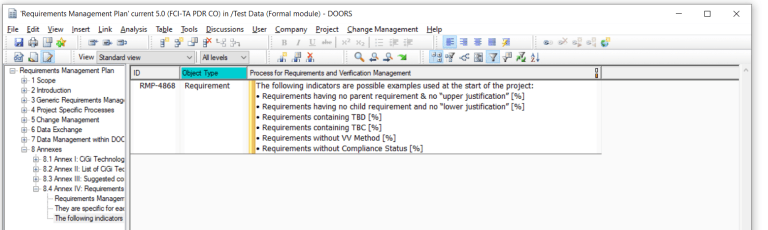
DXL script to apply a filter for TBD/TBC

This DXL script simply applies a filter for TBD or TBC for all requirements (as defined by the Object Type).

Managing Links

Once again, we come up against a failing of DOORS Classic. How do you manage links?

As an example, the database administrator decides at the start of the project to have a single link set for all ‘satisfies’ links. Later the decision is made to have separate link modules for each sub project. The original ‘satisfies’ module has to be split into multiple link modules and the links from each requirement placed into one of the new link modules. To do this using classic DOORS is very labour intensive (and error prone).

This utility does this splitting for you. It is very simple. It copies or moves the links from any module pair to another other set of modules though any link module. In the above use case, the administrator will need to open up each module in turn and move the links into the correct link module.

Link Manager utility

It is run from within the source module and has 2 mutually exclusive options:

  • Move the links OR
  • Copy the links

It also has 2 toggle modes:

  • The ‘Dry Run’ mode (default) where it analyses the links and displays a list of proposed changes. This enables a review to be made before the links are actually made. If this mode is switched off, then the links are created.
  • The log results mode that displays the results in the DOORS interaction window.

Rather than browsing every time, each link, source or target module cut and paste directly into the relevant box.

Note that it assumes that the link set pairings have already been created for the new links although future enhancements of the tool could build these automatically. It could also be adapted to be run from the main DOORS window and perhaps select groups of modules for the same action.

Document Manager

In almost every project I have worked on there is a need to export the requirement set into Word as a requirement specification and get it reviewed, approved and distributed. And in a lot of cases that is how the requirements arrive; as a requirement specification that has to be imported into DOORS.

When importing or exporting then the front pages of the Word document are not part of the requirements – or at least they should not be. The requirements module should only contain the requirements and not the front matter. Where does all that information go? You also need to correlate the document versions with the module/project baselines. So how is this done?

The contents/index can be easily generated in Word but maintaining the version history, the reviewer and the distribution data is not so easy. Yes, you could put this in as ‘Information’ in embedded tables at the front of the requirements, but this is messy to edit. You could even have a separate module for the data and link it in on the build. But this makes life more complicated.

By far the simplest way is to store this information as module attributes. Clearly a DXL utility to extract, display and edit these module attributes is going to be extremely useful.

Document Manager DXL utility

This DXL Utility is extremely comprehensive and has been designed to manage all aspects of document management from within DOORS ranging from document issue, performing baselines and export to PDF.

Firstly, you select the document number- as this tool allows different documents to be exported from the same requirement module – so you could export a requirement specification, a VVRM matrix ( pulling in linked data from the test cases and even test results) and an interface specification ( filtered on interface requirements). Then select the version or issue of the document (as matched with the module baselines). What is then displayed is the document title, additional document information (which can be tailored for your company), the names of the document signatories and the document distribution record. Often this information is the same for each document and version, but it can be modified for any combination.

Depending on the user group access then these fields can be either read only or editable (in the former case the Edit button is disabled). They can also be locked down if a document is published.

What is also displayed in the lower part of the screen is the document change history and a series of buttons.

The buttons allow the creation of a new document (which is how the module can used for multiple documents as described above), creation of a new issue by execution of a new baseline (major or minor), or the generation of a pdf. This latter operation is an export using LaTex functionality and it will use all of the information above, plus a predefined company/document template containing the company headers and footers to build the complete document. As an alternative this could be linked to Rational Publishing Engine.

Before the document is produced the user can also enter the pdf file name and location and whether change bars are required.

The Working Copy entry is for when a document is needed to be exported for review but not as a formal issue. In which case the document is water marked as Draft or For Information Only.

Document Manager export options

Quick Spell Check

Spell checking is always an issue in requirements. It is important that all spelling mistakes are removed before a requirement is sent for review so that the reviewers do not spend time correcting typos and forget the technical stuff.

Layout DXL script to identify spelling mistakes

This script uses the spelling functions of DXL and will identify any misspelt words in a layout DXL column.

It does not prevent mistakes as you type like Word but if combined with a view to filter on ‘not equal to “OK”’ then it is a simple task to quickly spell check and correct. The current implementation is for English (UK) as this is the most common language for requirements but the DXL script could be adapted for other languages.

Display Banned Words in Requirements

Perhaps one of the most important quality attributes necessary for a requirement is to be able to verify the requirement. Some of the phrases and words that we use in every-day language, because they are ambiguous or cannot be verified, should never be used in requirements; some should only be used in exceptional and justified cases. There are also non-specific phrases, pronouns, indefinite pronouns, unmeasured quantifications, indefinite temporal keywords and other grammatical constructs that also should never be used in a requirement.

Layout DXL script to identify banned words

This DXL script will identify any banned words (or rather terms that should be avoided) in a layout DXL column.

It does not prevent mistakes as you type but if combined with a view to filter on requirements and ‘not equal to “OK”’ (which is the default) then it is a simple task to quickly identify areas of concern and correct. The banned word list is currently hardcoded into the DXL script but it could be enhanced to read the list from a specialist module to provide more visibility and ease the maintenance task. The list could be tailored for individual companies.

It is interesting to note that IBM have recently launched their own Requirements Quality Assistant for DOORS Next.

“Using Watson Natural Language Service and pre-trained AI, the Requirements Quality Assistant has 10 built in quality indicators designed to be consistent with guidelines from the International Council on Systems Engineering (INCOSE) and NASA for writing complete, clear and testable requirements to accelerate your review process, increase requirement quality and reduce training for junior requirements engineers.”

https://www.ibm.com/us-en/marketplace/requirements-quality-assistant

Although this DXL script is not as sophisticated as IBM’s, it nevertheless will highlight words that should be avoided – and at over 150 terms, our list is longer than in the INCOSE guide!

Simple Scripts – Identifying all DXL attributes in a database

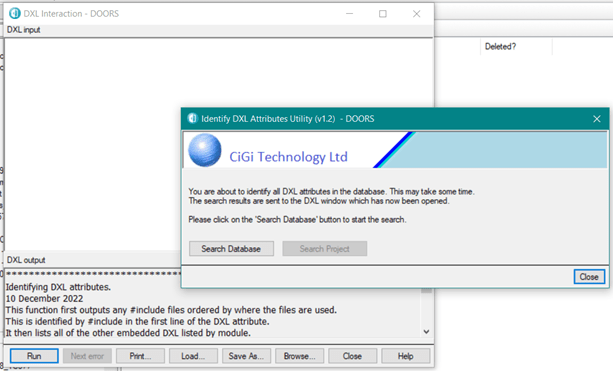
This simple script is used when you get a DXL attribute error but do not know which module is causing the error (which is very common) or when the DOORS administrator wants to identify the DXL attributes in all the modules. Perhaps prior to combining or modifying a specific function.

DXL script to find all DXL attributes in the database

IIf a project is selected before the utility is run, then both buttons are enabled. The user can choose to search the whole database, or limit the search to just the selected project.

DXL Script to find all DXL attributes in a specific project

Depending on the user choice the script then interrogates all modules in the database or the current project, and because this may take some time, then a progress bar is displayed:

Wait progress bar for the DXL Script

When the DXL script completes, it lists the names of the DXL attributes in the DOORS interaction window.

Results page to find all DXL attributes in the database

You can then use the Module Administration utility to confirm and manage the DXL attributes.

Using Common Modules

The Display Meaning Tool is designed to work with a number of common modules for Abbreviations, Glossary, References and Standards. These can be project or company-wide.

All entries are loaded from the modules when the tool starts and compared to the attributes for the current Object. Matched terms and their meanings are displayed. No links are involved.

Display Meaning Tool

The tool can also be used to add, delete or edit existing entries in any of the common modules and there is also functionality to open the original source document using its URL.